


Troubleshooting product visibility in CPQ Cart
Context: Products are not visible in the CPQ cart. You have built a CPQ solution and configured your commercial products within the…
Key Points
- Most revenue leakage isn't visible on a dashboard. It's hidden in price discounts, out-of-control automation, and manual reconciliation.
- A targeted diagnosis can determine in minutes what an internal audit often takes weeks to determine.
- A free check is a good start, but most people stop at the configuration and don't get to the revenue stream itself.
- The right approach depends on the complexity: a light review for a simple environment, and more in-depth engineering for a layered one.
- Ask for a report that outlines priorities, not a general checklist.
Brief Assessment
For most teams, a targeted assessment like Revenue at Risk is the quickest way to get started: it’s free, takes about ten minutes, and doesn’t require access to your systems. Save a full discovery for organizations with years of accumulated complexity.
Context: products are not visible in the CPQ cart
You have built a CPQ solution and configured your commercial products within the EPC. But when you view the cart, no products are visible or available. What now? There could be a number of things going on, causing the products not to be visible in the CPQ cart.
The problem: what could it be due to?
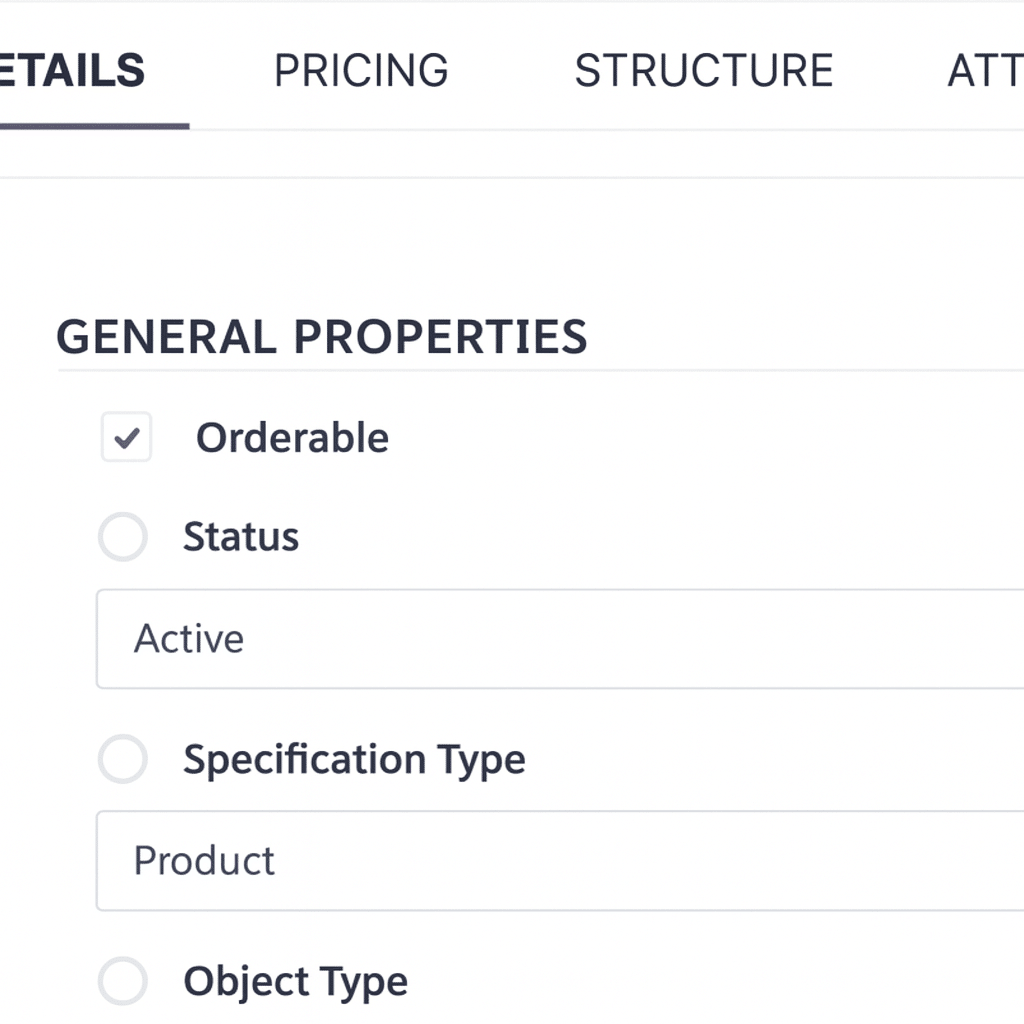
The "Orderable" checkbox is not marked as "true" for this product.
The solution:
- Go to your Vlocity Product Designer
- Look up your product
- Go to General Properties
- Check that the box Orderable is checked
- If not, check the box and save your modification.
The 'Product Status' is not active
The solution:
- Go to your Vlocity Product Designer.
- Look up your product.
- Go to General Properties.
- Check that the box Status at Active is set.
- If not, check the box Active box in the drop-down list and save your modification.
The 'Active' box is not selected for this product
The solution:
- Go to your Vlocity Product Designer.
- Look up your product.
- Look under Effectiveness or the box Active box is checked.
- If not, check the box Active box and save your modification.
The product has an incorrect sell-by date
The solution:
Please note that products within the EPC have a start and end sale date.
- Go to your Vlocity Product Designer.
- Look up your product.
- Look under Effectiveness or the box Selling Start Date is empty, or that the date is in the past.
- If not, make the box live or select a date that is in the past.
- The same goes for the end date. Make sure the date is in the future when this box is filled in.
- Save your adjustments.
The product has a Context Rule that hides the product
The solution:
- Go to your Vlocity Product Designer.
- Look up your product.
- Go through all Context Rules through; click on the details of the Rules of the (old) Product Console. Using the old Product Console , because the new Product Designer sometimes does not show all the Rules properly.
- Check all Conditions, the easiest way to verify that the context rule is the problem is to temporarily remove the rule. If the product then appears, you know you need to take some time to dig through the context rules.
- You can also use the context rules with the CPQ Configuration setting: ContextRulesEnabled.
There is no price for this product in the price list
The solution:
Note: A product without a price is not visible in the CPQ cart.
- Go to Vlocity Product Designer.
- Look up the product.
- Check for values entered for that product under the "pricing" tab.
- Always have a value filled in, even if it is zero. This also applies if you have a setup with attribute pricing or the like.
Insufficient Maintenance jobs have been performed
The solution:
We recommend that you always have a Maintenance job after you have changed a product configuration. Then you can be sure that the product cache and the product hierarchy are properly configured for use in the CPQ Cart.
- Go to the app launcher and search for Vlocity CMT Administration up.
- Go to "Maintenance Jobs" and perform the following tasks in this order:
-
- PRODUCT HIERARCHY MAINTENANCE
- CLEAR MANAGED PLATFORM CACHE
- REFRESH PLATFORM CACHE (FULL)
Ensure you complete each task before starting a new one. This can sometimes take a while because they are executed as async jobs. You can also check
progress in Setup with the keyword Apex Jobs.
If you frequently perform these tasks, you can automate them. This is especially useful if you want to add them to your development or CI/CD workflow. You can run them as Apex scripts.

// Run jobs for hierarchy and cache
for (Pricebook2 pricebook : [SELECT Id FROM Pricebook2]) {
//https://docs.vlocity.com/en/Refresh-Platform-Cache.html
vlocity_cmt.CMTAdminJobService.startProductHierarchyMaintenanceJob(pricebook.Id);
}
You can even use them as post-Deploy step run in the Vlocity Build Tool: (https://github.com/vlocityinc/vlocity_build)
In conclusion
Hopefully these tips will help you configure your EPC and CPQ. I know these problems can be really tricky to solve, but at least your products are now visible again in the CPQ cart.
I post Technical Deep Dives on a regular basis. Subscribe today and don't miss a single CaseNine Technical DeepDive episode.

Yannick van Eldik
CaseNine Yannick van Eldik is a co-founder of CaseNine and helps organizations increase their revenue by optimizing commercial processes.
Share this article
Read more
Related insights

Technical Deepdive Series
Scalable Salesforce integrations for steady growth
This article explains why Salesforce integrations become unstable over time and how you can design scalable, reliable architecture using a diagnostic, targeted approach.
April 11, 2026 · 3-minute read
Read more
Technical Deepdive Series
Seamless Salesforce Integration: A Practical Guide to Sustainable Growth
This article explains why Salesforce integrations become unstable over time and how you can restore predictable behavior through clear architectural choices, data ownership, and error handling.
April 10, 2026 · 4-minute read
Read more
Technical Deepdive Series
AI-powered testing in Salesforce sales processes
This article demonstrates how AI-powered testing improves stability in complex Salesforce revenue processes through better diagnostics, regression testing, and robust governance.
April 9, 2026 · 3-minute read
Read moreFind the leak before it finds your margin
Revenue at Risk is free, takes about ten minutes, and doesn't require access to your systems. You'll receive a clear report with priorities, reviewed by an engineer—never by a chatbot.